
Superfetch (called SysMain in Windows 10 and Windows 11) is a software prioritization and loading service that has been around since Windows Vista. It sits quietly in the background and evaluates which apps you use the most and how much RAM you use. Although designed to make your computer faster, SysMain is often unnecessary and can be safely disabled to fix high memory usage on your computer.
Performance issues are always a reason to look into the Task Manager, because it is there that you can most often find a hint indicating the cause of the problem. Today we will try to deal with one of these problems, namely the high utilization of the hard disk by the SysMain system process, known in earlier versions of Windows as Superfetch. In Windows 10, the SysMain service is responsible for reducing disk write size by compressing and merging memory pages. When there is not enough RAM, the data is not moved to the paging file, but compressed, and only when the memory manager understands that compression alone is not enough, the pages are dumped into pagefile.sys.
- Why is Superfetch (SysMain) consuming so much memory?
- What is Superfetch (SysMain) and what is it used for?
- Does disabling SysMain save memory?
- How to disable Superfetch (SysMain)
- Using Windows Task Manager services
- Using the Registry Editor
- Using PowerShell
- Using the command line
- SysMain host service loading Windows disk
- What happens if you disable Superfetch?
- Frequently Asked Questions
- How to fix the 100% disk usage issue due to Superfetch?
- How to View SysMain in Task Manager and File Explorer
Why is Superfetch (SysMain) consuming so much memory?
Since the purpose of Superfetch (SysMain) is to prioritize frequently used programs, it can easily drive memory consumption up to 100%, especially when working with browser tabs and office programs, since it does not know how much memory you will need, so additional cached data is allocated in advance.
While SuperFetch is a useful feature, it makes your computer run more intensively in the background, resulting in increased RAM and CPU consumption. As time goes by, unused memory keeps growing and you end up using up a lot of extra space. This usually affects Windows systems with very low RAM (4 GB or less).
What is Superfetch (SysMain) and what is it used for?
Superfetch (SysMain) is a Windows Service Host process («svchost.exe») whose main task is to allocate RAM for frequently used applications and programs. There is only one SysMain activity on a Windows machine, which can be seen in the Services tab of the Task Manager.
To quickly launch your favorite applications, SysMain loads their executables through reusable code blocks called dynamic link libraries ().
Interesting: 7 reasons why Windows 10 is better than Windows 11
Superfetch (SysMain) is designed to speed up your computer as it maintains and improves system performance over time. It also reduces the overall download time. Every time you start your computer, all necessary applications are preloaded using the computer’s unused memory.
The SysMain service is an interesting service, on the one hand it exists, but on the other hand it doesn’t, what a joke. And all because this SysMain is the name of the service for all sorts of programs, well, or for programmers, but the name that is for us is SuperFetch. Therefore, SysMain and SuperFetch are the same service, although to be honest, it seemed to me that SysMain is some kind of the most important Windows service, judging by the name.
So, this SuperFetch service runs under the svchost.exe process and is designed to improve PC performance. Well, at least that’s what the Windows developers say about it, but in other ways I can’t say that it’s not. Although it seems to me that many will disagree with me and will be sure that this service should be disabled, because it consumes too much RAM.
SuperFetch is essentially a Windows cache. This service performs the correct operation of the cache and makes sure that you are comfortable working on your PC, so that nothing just gets stupid and freezes.
The service caches files (but not blocks like Primocache) of those programs that you use frequently. Believe me, there is no need to delve into the special details of how this technology works, it’s just not interesting. Also, SuperFetch may prefetch some files or data that you may need. She herself is trying to understand what and when you use, in order to provide quick access to this data. All this data is written to RAM, but it can be quickly freed if the situation requires it. So everything is thought out here
Although some users experienced a strange situation. In short, all free RAM went under the cache, there was almost no free memory left. But at the same time, the programs reported that there was not enough RAM for their work. These are the pies. I will only say one thing, that in Windows 10 I didn’t notice such a glitch, but I don’t know if it was fixed in Windows 7, but I think it was fixed
If you think that SuperFetch does not work, then I understand you, because I myself thought so. And by the way thought so long. Until I did an experiment, which I advise you. Just disable this service and work at the computer for a month. Then turn it on and compare. I will not say anything, you will notice the effect yourself.
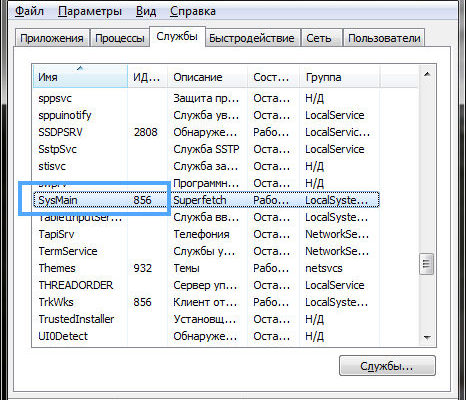
So, see SysMain on the Services tab in the manager:

You see, there is a number 856 there, this is the process ID, it can be used to determine under which process this service is running. Actually, on the Process tab, you can see that this is one of the svchost.exe processes (they have the same identifiers):

Now let’s open the services (there is a button in the manager on the Services tab), there is no such service as SysMain, but there is SuperFetch. Press twice on the service:

This window will appear, here is the service name and display name:

How to disable the SuperFetch service? Well, it’s not difficult. In the same window, you need to select Startup type: Disabled, and then click on the Stop button:
Then you will disable the automatic start of the service and stop its current operation. As a result, SuperFetch caching technology will be disabled. To enable, you need to return everything back. After enabling or disabling, it is better to reboot
Regarding the shutdown. Personally, my opinion is that the service really works and helps speed up the system as a whole, but not everyone notices this, because the SuperFetch service is already enabled by default. That is, it is already the norm. But disabling it, just the same, will lead to a decrease in the performance of the file system, programs can run more slowly as well as install. But here is the thing, if you have an SSD, then even without SuperFetch your Windows will work fast enough
I hope that I managed to explain what the SysMain service is and how to disable it.
Does disabling SysMain save memory?
Since an objective assessment is not possible, we tried the following experiments. First, we watched the memory work in the task manager during the automatic start of Superfetch (SysMain). At the same time, several browser tabs and other applications were active (about 15). Memory consumption reached 55% for a device with 12 GB.
Later, after stopping SysMain, the same set of browser windows and applications remained open. Memory performance was evaluated again. There was a dramatic drop in memory usage from 55% to 45%.
Disabling SysMain may or may not affect your device’s RAM performance, depending on how much RAM is installed on your device. The impact may not be as significant in the case of devices with solid state drives () compared to hard drives (), but still noticeable.
How to disable Superfetch (SysMain)
Superfetch (SysMain) definitely helps some programs load faster. But if you’re using a newer Windows PC, this might be overkill. It may seem more effective to disable SysMain completely. Since this service is not required, you can disable it whenever you want. There are four ways to do this.
Using Windows Task Manager services
The Windows Task Manager is the standard implementation of SysMain and its «svchost.exe» program.
Using the Registry Editor
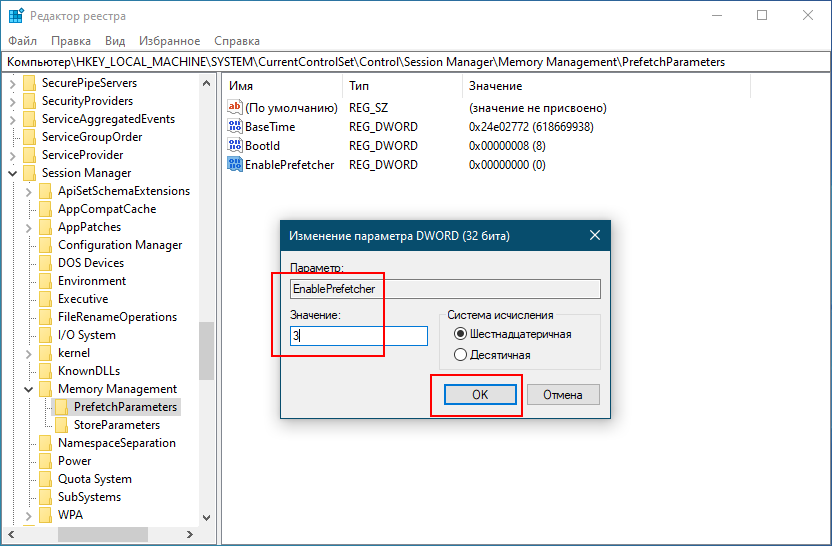
To disable the Superfetch (SysMain) function, change its «Start» value in the registry editor.
Using PowerShell
The PowerShell window is one of the fastest ways to disable and enable the SysMain activity.
Using the command line
Like PowerShell, the Windows Command Prompt is the classic way to instantly disable or enable SysMain.
SysMain host service loading Windows disk
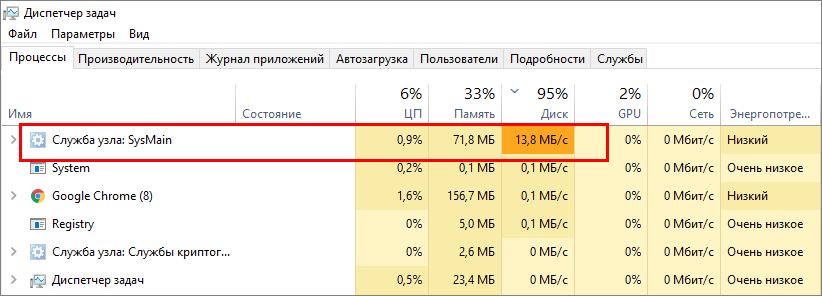
In fact, this means a reduction in the number of I / O operations on the hard disk, therefore, the point of view that it is necessary to disable the SysMain service on a PC with SSD disks in order to save their resource does not have any serious justification. From this we can draw a completely logical conclusion that it is undesirable to disable SysMain, but what if SysMain itself starts loading the disk? Such anomalous behavior of the service may be due to the incorrect operation of one of its components, damage to system files and the presence of errors on the hard drive itself.
Check the status of service components
The first thing to do when SysMain detects excessive load is to restart the computer or restart the SysMain service from the Service Control snap-in. If the situation persists, check the status of the SysMain service components. To do this, open an elevated PowerShell console and run the Get-MMagent command. As a result, seven parameters will be displayed in the console window, of which we pay attention to the following:
• MemoryCompression — is responsible for memory compression. • PageCombining — combines memory pages with identical content. • ApplicationPreLaunch — is responsible for speeding up the launch of frequently used programs. • ApplicationLaunchPrefetching — provides system prefetching of application launch. • OperationAPI — provides access to SysMain to others programs through the API.
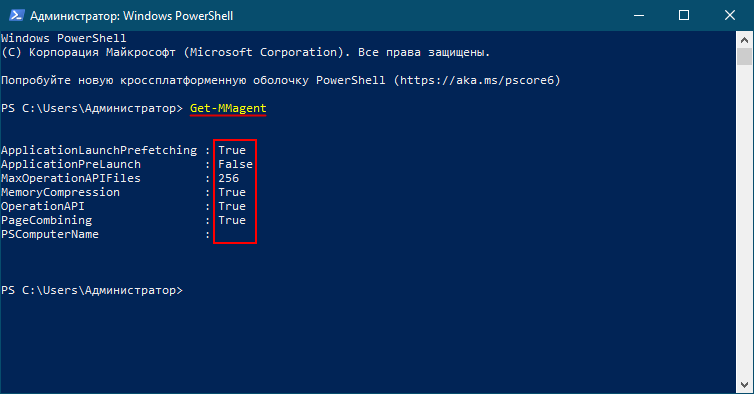
Ideally, all of these components should be enabled, i.e. set to True. If any of the listed features is disabled (values False), enable it by running the PowerShell cmdlet Enable-MMagent -feature-name, for example, Enable-MMagent -ApplicationPreLaunch.
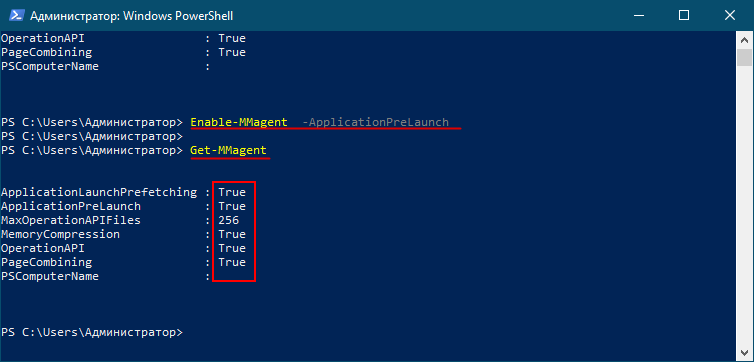
The absence of a positive result will mean that the disk loading by the SysMain process is related to something else, in particular, to damage to system files and the presence of errors on the hard disk. Accordingly, in this case, it is necessary to check the physical condition of the disk and scan Windows for damage or missing system files using the standard SFC and Dism utilities. Additionally, third-party factors should be excluded — disable third-party application services and analyze startup, removing everything unnecessary from it.
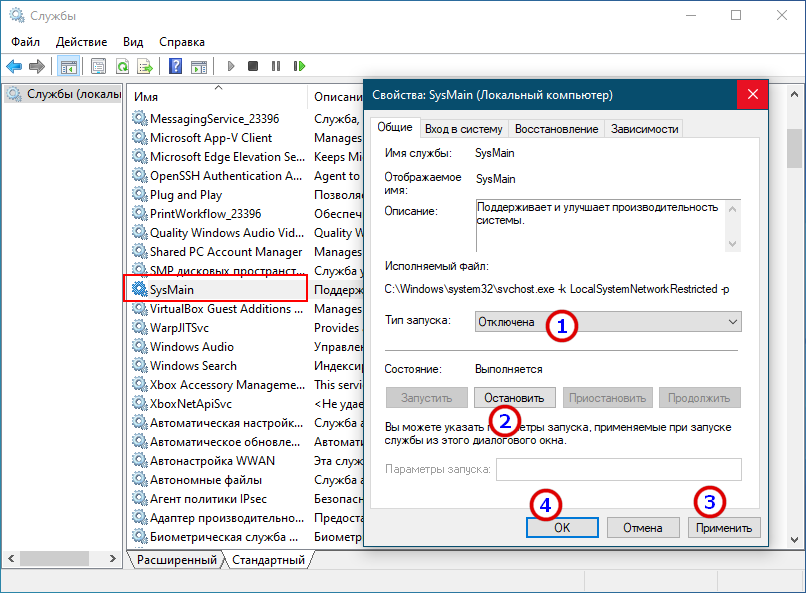
As a last resort, you can disable the SysMain service itself in the Service Control snap-in by setting its startup type to Disabled and then clicking Stop. It should be noted, however, that stopping the SysMain service is not a permanent solution, so you should resort to it only when other troubleshooting methods have proven ineffective.
What happens if you disable Superfetch?
After disabling Superfetch and a mandatory reboot of the computer, you will find that the SysMain task is no longer in the Windows Task Manager processes. Also, when you go to the Services tab, you will find that the status of SysMain has changed. It used to be «Running» but should now show «Stopped».
Frequently Asked Questions
Although Superfetch (SysMain) is not a required Windows service, disabling it may result in a slight increase in application loading and startup times. Latency is not very noticeable on . However, it is perfectly safe for the Windows system. There are no long term performance issues.
How to fix the 100% disk usage issue due to Superfetch?
If the disk usage goes up to 100% due to the Superfetch (SysMain) service, it means that some programs may be causing the spikes. One of the most common programs is the Windows Update service.
Linux and Windows Expert
Experienced skydiver. I read and listen to podcasts a lot. I love campfires, guitar songs and approaching deadlines. I love to travel.
How to View SysMain in Task Manager and File Explorer
There are many other processes in Task Manager named «svchost.exe», but they are not related to SysMain. You don’t want to accidentally terminate the wrong «svchost.exe» task.
